Local instances and modpacks
A local instance is one you make yourself: any Minecraft version, any mod loader, any modpack. It lives on your PC and works without the Neko servers. Local instances arrived in Neko Launcher 2.2.34.
There are three ways to get one, all from the + button at the bottom of the sidebar:
| Tab | What it does |
|---|---|
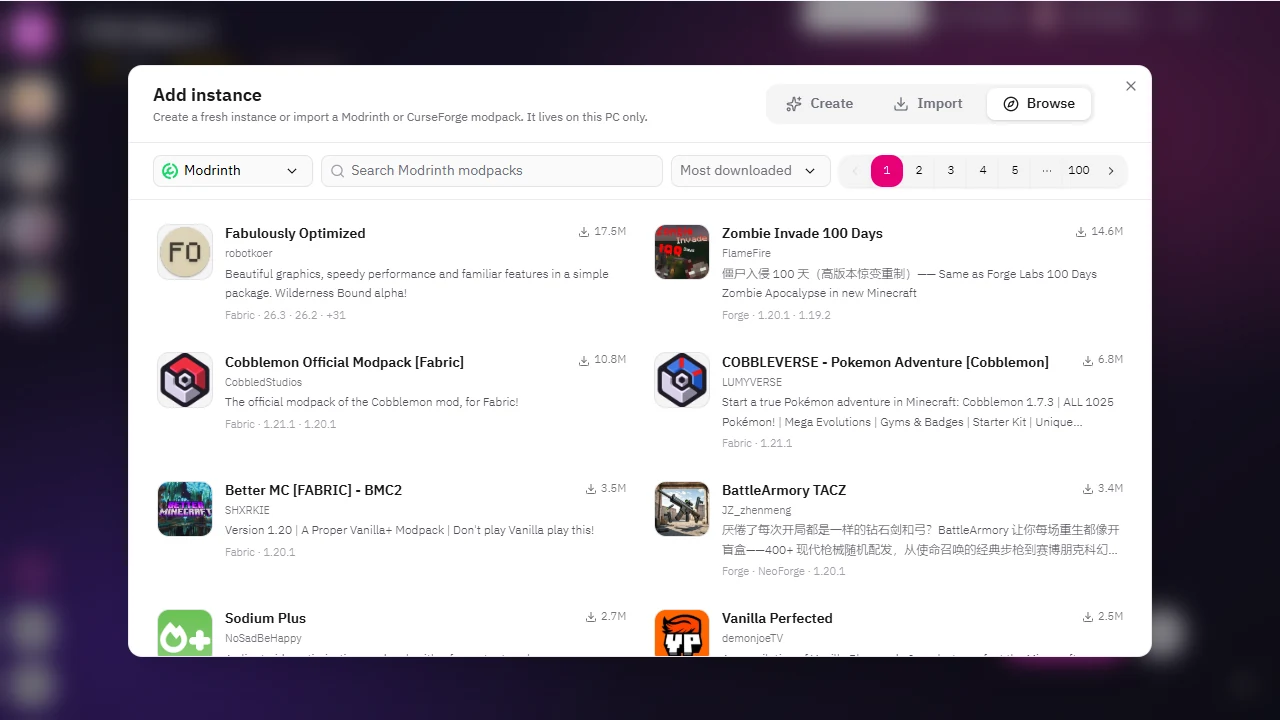
| Browse | Search Modrinth, CurseForge, FTB and ATLauncher and install a modpack in one click. The window opens here. |
| Import | Drop a Modrinth .mrpack or a CurseForge modpack .zip you already have. |
| Create | Start empty: pick a Minecraft version and Vanilla, Fabric, Quilt, Forge or NeoForge. |
Browse modpacks
 View Image
- Pick the platform in the first box: Modrinth, CurseForge, FTB or ATLauncher.
- Type in the search box, or leave it empty to see the most popular packs.
- Sort by relevance, downloads, follows, newest or recently updated (Modrinth and CurseForge).
- Use the page numbers at the top right to move through results.
- Click a pack to choose a version.
 View Image
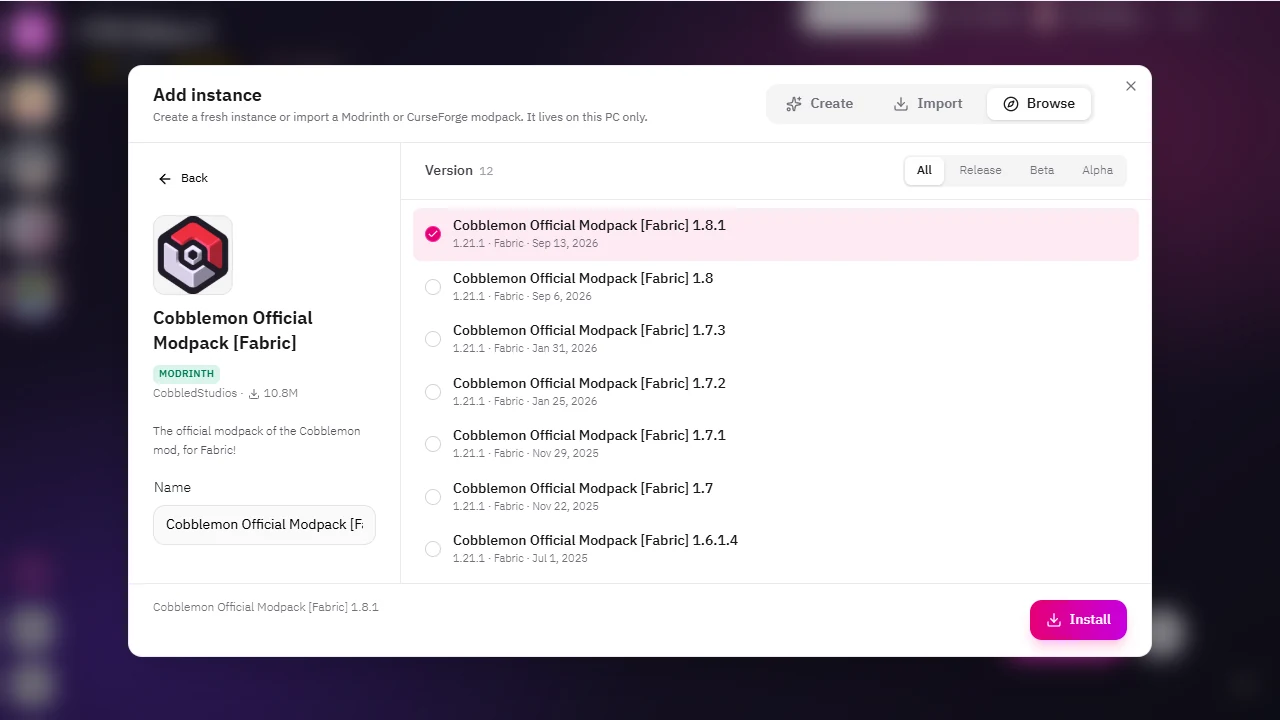
On the version page you see the pack on the left (you can rename the instance here) and every version on the right. All / Release / Beta / Alpha filters the list. Press Install.
Import a file
Open Import and drag a .mrpack or CurseForge .zip onto the window, or click to choose it. The launcher shows the pack's Minecraft version, mod loader, how many mods and extra files it has, before anything is downloaded. Rename it if you like, then press Import.
How installing works
- Installs run in the background. You can close the window at any time; the new instance appears in the sidebar with a progress ring.
- Click the installing instance to see it on the home page with the same loading bar a launch shows, or open the Installs list (the badge button above +) to cancel.
- Every downloaded file is checked against its hash. A mod whose author does not allow third-party downloads is listed at the end with a link, so you can download it yourself.
- Minecraft and the mod loader (including the NeoForge / Forge patching step) are prepared during the install, so the first Launch starts right away.
- Reloading the launcher window does not stop an install.
| Source | Needs |
|---|---|
| Modrinth, FTB, ATLauncher | An internet connection. |
| CurseForge (browse or .zip) | An internet connection and the Neko API, which looks up CurseForge downloads (the CurseForge key lives on our server). |
| Create | An internet connection for the first download of Minecraft and the loader. |
Instance settings
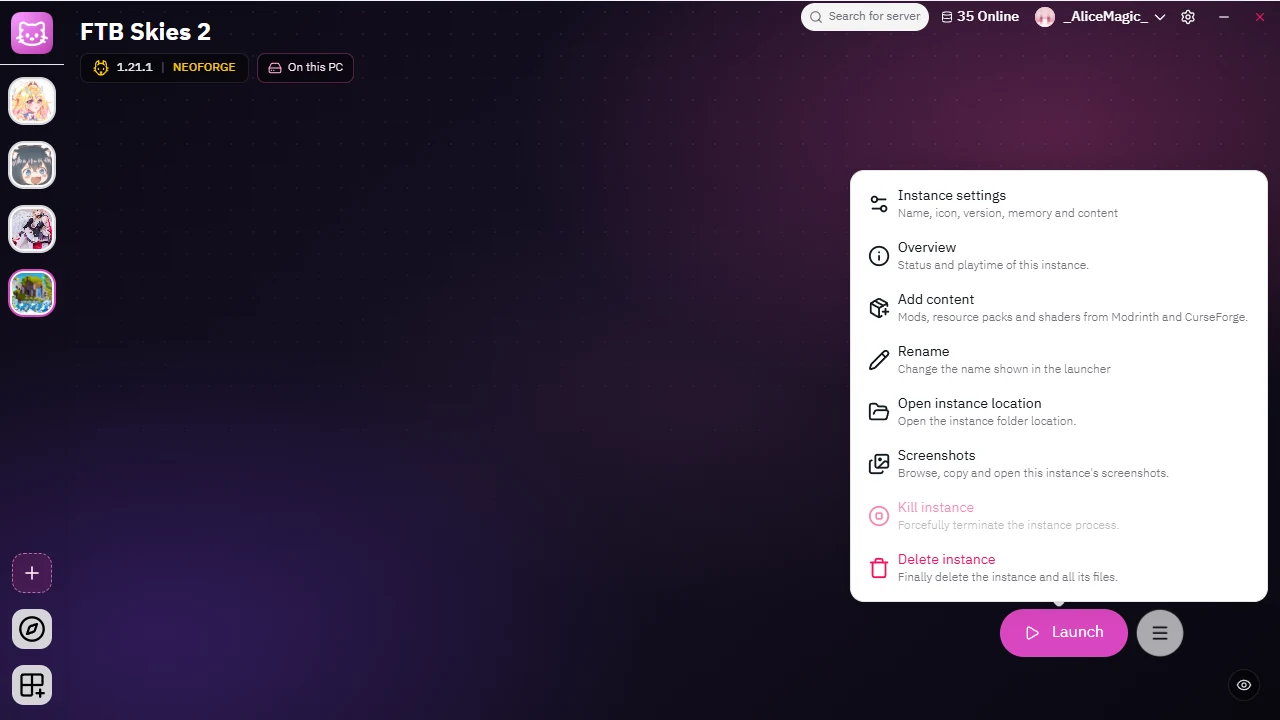
Right-click a local instance (or open the menu next to Launch) and choose Instance settings.
 View Image
 View Image
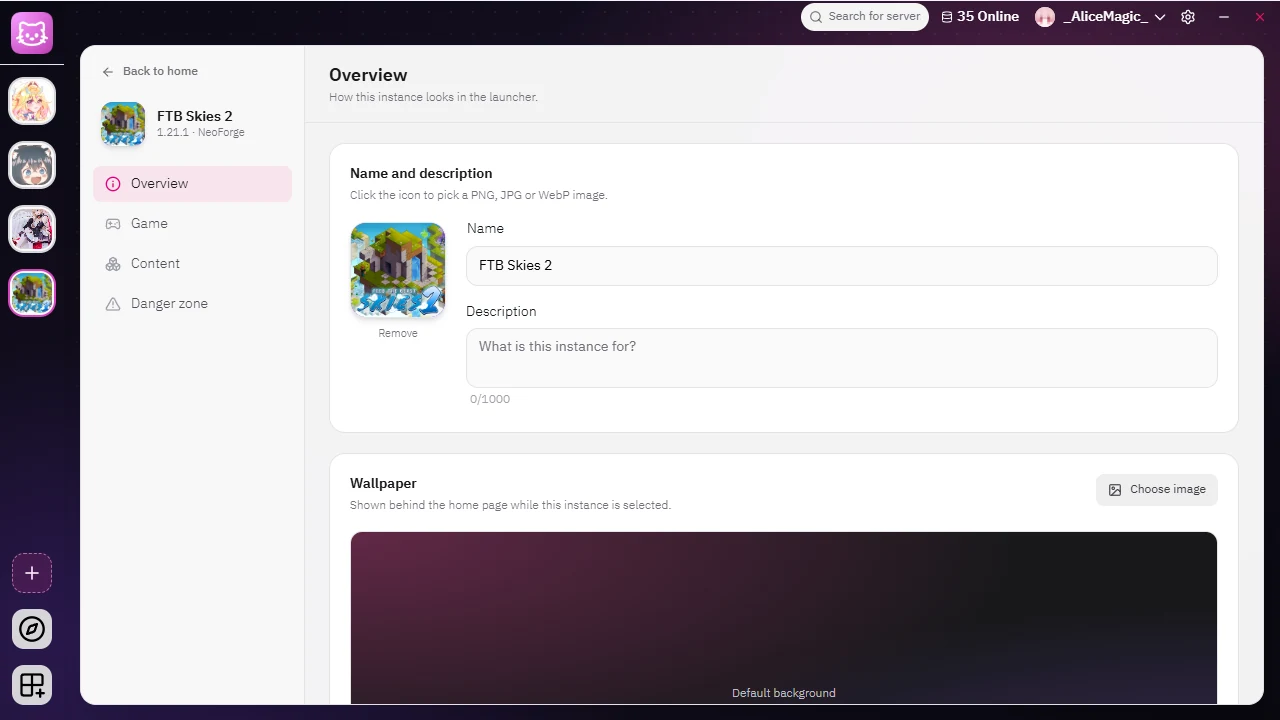
| Page | What you can change |
|---|---|
| Overview | Name, description, icon and the background image shown on the home page. Where the pack came from is shown read-only. |
| Game | Minecraft version and mod loader (with a warning: changing them can break mods), memory for this instance, JVM arguments and game arguments. Save with the bar at the bottom. |
| Content | Mods, resource packs, shader packs and worlds. |
| Danger zone | Open the instance folder, or delete the instance and everything in it. |
Content
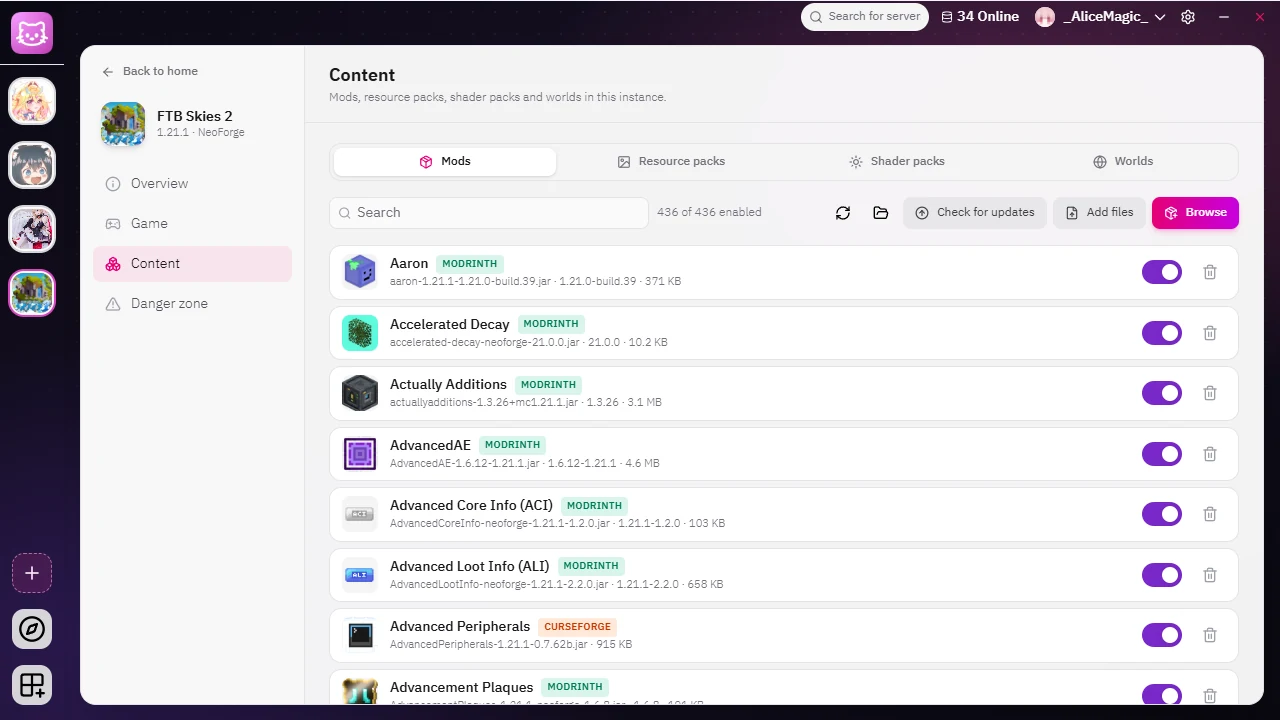 View Image
- Every file is labelled Modrinth, CurseForge or Local (a file neither site knows), with the project's real name and icon when it is found.
- The switch turns a mod or pack on or off (the file is renamed to .disabled, nothing is deleted).
- Browse adds content from Modrinth and CurseForge; Add files or drag and drop copies your own files in.
- Check for updates finds newer versions of Modrinth mods for this Minecraft version and loader.
- Deleting a file is permanent (it does not go to the Recycle Bin).
Good to know
- Local instances stay in the sidebar even when the Neko servers are unreachable; they show an On this PC chip.
- Discord shows the instance name while you play, without Ask to Join (that is for Neko servers).
- AI clients connected to the launcher's MCP server can create, import, browse and manage local instances too. See MCP server.